


Hey there! As a touch screen supplier, I often get asked if a touch screen can be used as a second monitor. Well, let's dive right into this topic and see what the deal is.
First off, let's talk about what makes a touch screen different from a regular monitor. A touch screen, as the name suggests, allows you to interact with the display directly using your fingers or a stylus. This adds a whole new level of interactivity compared to a traditional monitor where you rely on a mouse and keyboard.
So, can it be used as a second monitor? The short answer is yes, in most cases. But there are a few things you need to consider.
Compatibility
The first thing you need to check is the compatibility of the touch screen with your computer. Most modern computers support multiple monitors, but you need to make sure that your graphics card can handle an additional display. You'll also need to check the input ports on your computer and the touch screen. Common input ports for monitors include HDMI, DisplayPort, and USB-C. Make sure your touch screen has a compatible port and that your computer has an available port to connect it.
For example, if you have a laptop with only one HDMI port and you want to use a touch screen as a second monitor, you might need to use a USB-C to HDMI adapter if your touch screen supports USB-C input.
Operating System Support
Your operating system also plays a crucial role in whether you can use a touch screen as a second monitor. Windows, macOS, and Linux all support multiple monitors, but the process of setting them up might vary slightly.
In Windows, you can easily set up a second monitor by right-clicking on the desktop, selecting "Display settings," and then adjusting the settings for the additional display. You can choose to extend your desktop across both monitors, duplicate the display, or use the second monitor as a separate display.
macOS also makes it easy to set up multiple monitors. You can go to the "System Preferences" and then click on "Displays" to configure the settings for your second monitor.
Linux users might have a bit more of a learning curve, but most modern Linux distributions support multiple monitors out of the box. You can use the display settings in your desktop environment to set up the second monitor.
Touch Screen Functionality
When using a touch screen as a second monitor, you'll want to make sure that the touch functionality works properly. Some touch screens might require additional drivers to be installed on your computer to enable the touch features.
For example, if you're using a Carrier Touch Screen, you might need to download and install the specific drivers from the manufacturer's website. Once the drivers are installed, you should be able to use the touch screen just like you would on a tablet or a smartphone.
Advantages of Using a Touch Screen as a Second Monitor
There are several advantages to using a touch screen as a second monitor.
Increased Productivity
One of the biggest advantages is increased productivity. With a touch screen, you can quickly and easily interact with applications and files. For example, if you're working on a design project, you can use your fingers to zoom in and out of images, move objects around, and make adjustments. This can save you a lot of time compared to using a mouse and keyboard.
Enhanced Multimedia Experience
A touch screen can also enhance your multimedia experience. You can use it to watch videos, play games, and browse the web. For example, if you're watching a movie, you can use the touch screen to pause, play, and skip scenes.

Interactive Presentations
If you're giving a presentation, a touch screen can be a great tool. You can use it to show slides, interact with charts and graphs, and engage your audience. For example, you can use your fingers to highlight important points on a slide or to zoom in on a detailed chart.
Disadvantages of Using a Touch Screen as a Second Monitor
Of course, there are also some disadvantages to using a touch screen as a second monitor.
Fingerprints and Smudges
One of the biggest drawbacks is that touch screens tend to get fingerprints and smudges on them. This can make the display look dirty and can also affect the visibility of the screen. You'll need to clean the touch screen regularly to keep it looking clean and clear.
Limited Precision
Compared to a mouse and keyboard, a touch screen might have limited precision. For example, if you're doing detailed graphic design work, you might find it difficult to make precise adjustments using your fingers. In these cases, you might still need to rely on a mouse and keyboard for the most accurate work.
Cost
Touch screens are generally more expensive than regular monitors. If you're on a budget, you might need to consider whether the additional cost is worth it for your needs.
Some Popular Touch Screens for Second Monitors
There are several touch screens on the market that are suitable for use as second monitors. Here are a few examples:
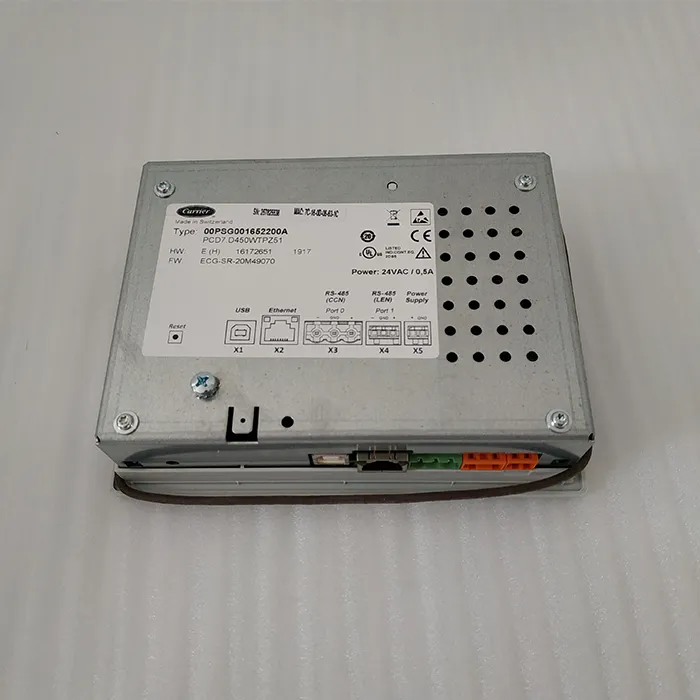
- Carrier TCarrier Touch Screen Oopsg001652200A: This touch screen offers high-resolution display and responsive touch functionality. It's a great option for both work and entertainment.
- Carrier CEPL131228-01-R-S 4.3 "PIC6 Touch Screen: This smaller touch screen is perfect for those who want a compact second monitor. It's easy to set up and can be used for a variety of applications.
Conclusion
So, to sum it up, a touch screen can definitely be used as a second monitor. It offers increased interactivity, productivity, and a better multimedia experience. However, you need to consider the compatibility, operating system support, and the advantages and disadvantages before making a decision.
If you're interested in purchasing a touch screen for use as a second monitor, I'd be more than happy to help you find the right one for your needs. Just reach out to me, and we can start a discussion about your requirements and budget.
References
- Various online articles and forums discussing multiple monitor setups and touch screen technology.


